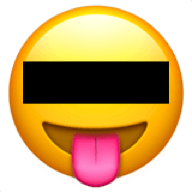
How to add an emoji to an image
Want to anonymise a face in a group photo, or hide a name on a screenshot? Redacted lets you drop an emoji on top of any part of an image, right in your browser.
Quick steps
- Open Redacted and drop, paste, or select your image.
- Drag across the area you want to cover.
- In the toolbar, choose the emoji mask.
- Pick the emoji you want to use.
- Click Download to save the edited image, or press Ctrl/⌘ + C to copy it to your clipboard.
Why use an emoji instead of a black bar?
Emojis keep the tone of casual screenshots and social posts light. A smiley or a party hat over a face makes it clear someone is hidden on purpose, without the newspaper-style “this is a serious redaction” look of a solid black box.
For more sensitive documents, the black box mask is usually a better choice.
Is the original image uploaded?
No. Redacted runs entirely in your browser — your image never leaves your device. See the about page for more on privacy.