Blur a license plate in a photo
Photos of cars for sale, parking spots, or street scenes often include a license plate by accident. A plate can be used to look up a vehicle’s owner, so it’s worth covering before you post. Redacted lets you blur, pixelate, or black out a plate directly in your browser.
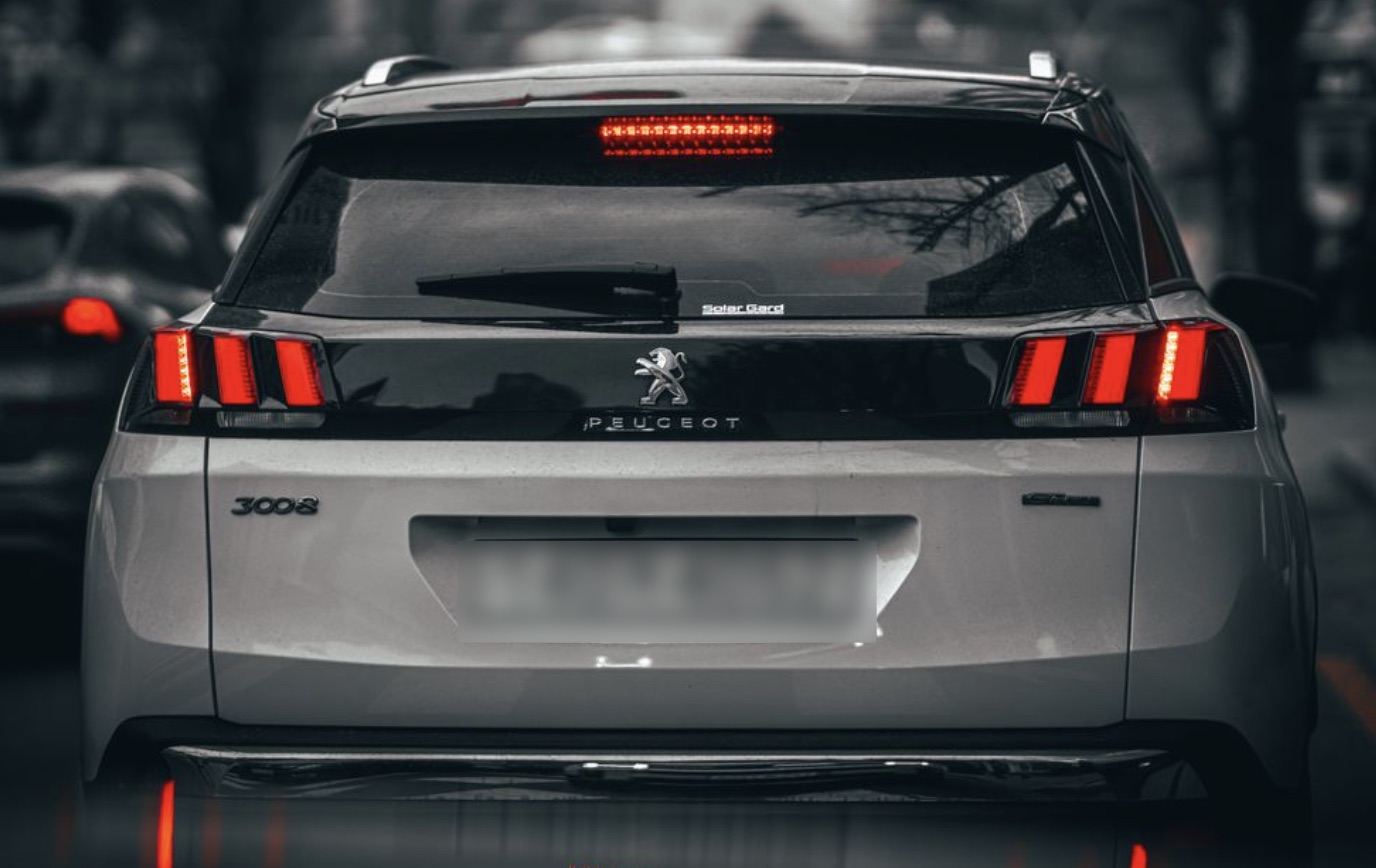
When this matters
- Listing a car for sale on Marketplace, Craigslist, or eBay
- Sharing a photo with someone else’s car visible in the background
- Posting dashcam or street photos online
- Sharing accident or insurance photos outside your insurer
How to blur a license plate
- Drop the photo into Redacted, or paste it from the clipboard.
- Drag a square selection over the plate.
- Choose a mask — black box for a clean cover, or blur or pixelate to keep the area looking natural.
- Resize or move the selection until it fully covers the plate.
- Download the edited photo.
Choosing a mask for a plate
- Black box — fully covers the plate with no detail left in the exported image. Use this for plates that are large, sharp, or close to the camera.
- Blur or pixelate — softer look, good for plates that are already small or at a distance, or for casual social sharing.
Multiple plates or multiple photos
Add a separate selection for each plate in the photo — every selection can use its own mask and shape. If you have several photos, process them one at a time.
Privacy
The photo is edited entirely in your browser. There’s no upload, no account, and no tracking. The exported image also has its metadata, including GPS location, stripped automatically. To see what the original was carrying before you share it, drop it into the EXIF viewer.
FAQ
Will this also remove the photo’s location data?
Yes. Every image exported from Redacted has its EXIF metadata, including GPS coordinates, stripped — separately from any masks you add.
Which mask should I use for a plate?
Black box is the safest choice if the plate is clearly readable. Blur or pixelate works for casual posts where a softer look is fine.
Can I blur plates in several photos at once?
Not in one pass. Open each photo in Redacted, mask the plate, and download it before moving to the next.